Speak Squid
Speak Squid is a language learning platform made to give people a way to practice speaking in realistic situations without needing another person to be available. The main technical challenge of this project was being able to coordinate different systems and APIs that handled different types of data:
- Node.js, Express and Passport for authentication
- Browser microphone and camera APIs
- MediaRecorder for capturing audio and video
- Whisper for speech-to-text transcription
- GPT for scenario based conversations and grammar analysis
- Web Speech API for spoken AI responses
- LibreTranslate for transcript translation
Below is a diagram that summarizes the complete workflow of Speak Squid:
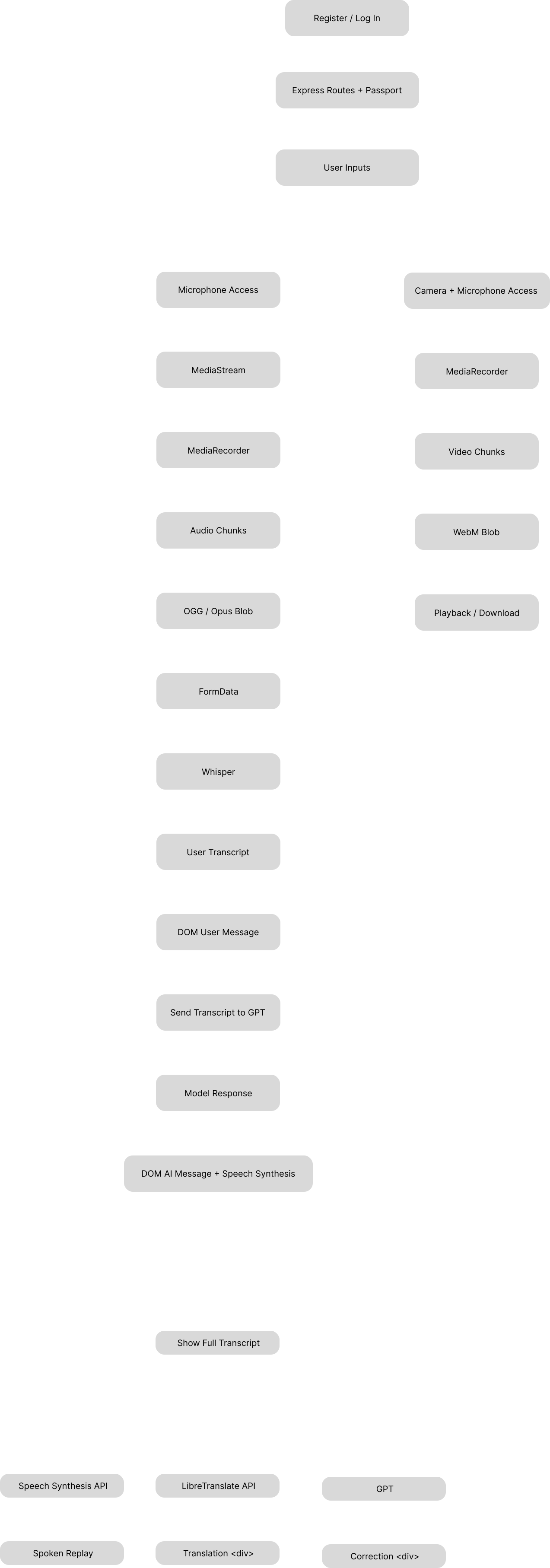
Voice Conversation Pipeline
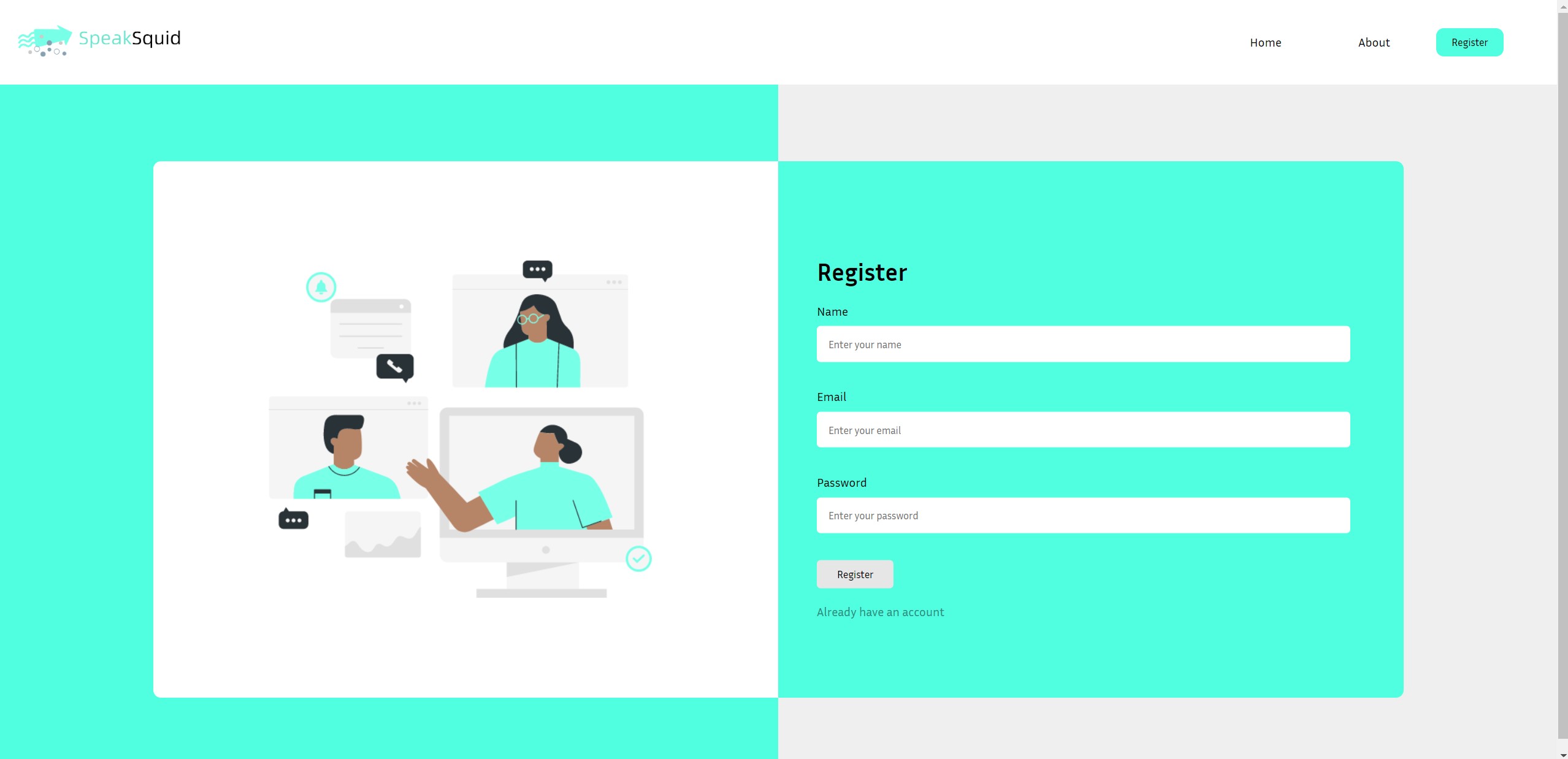
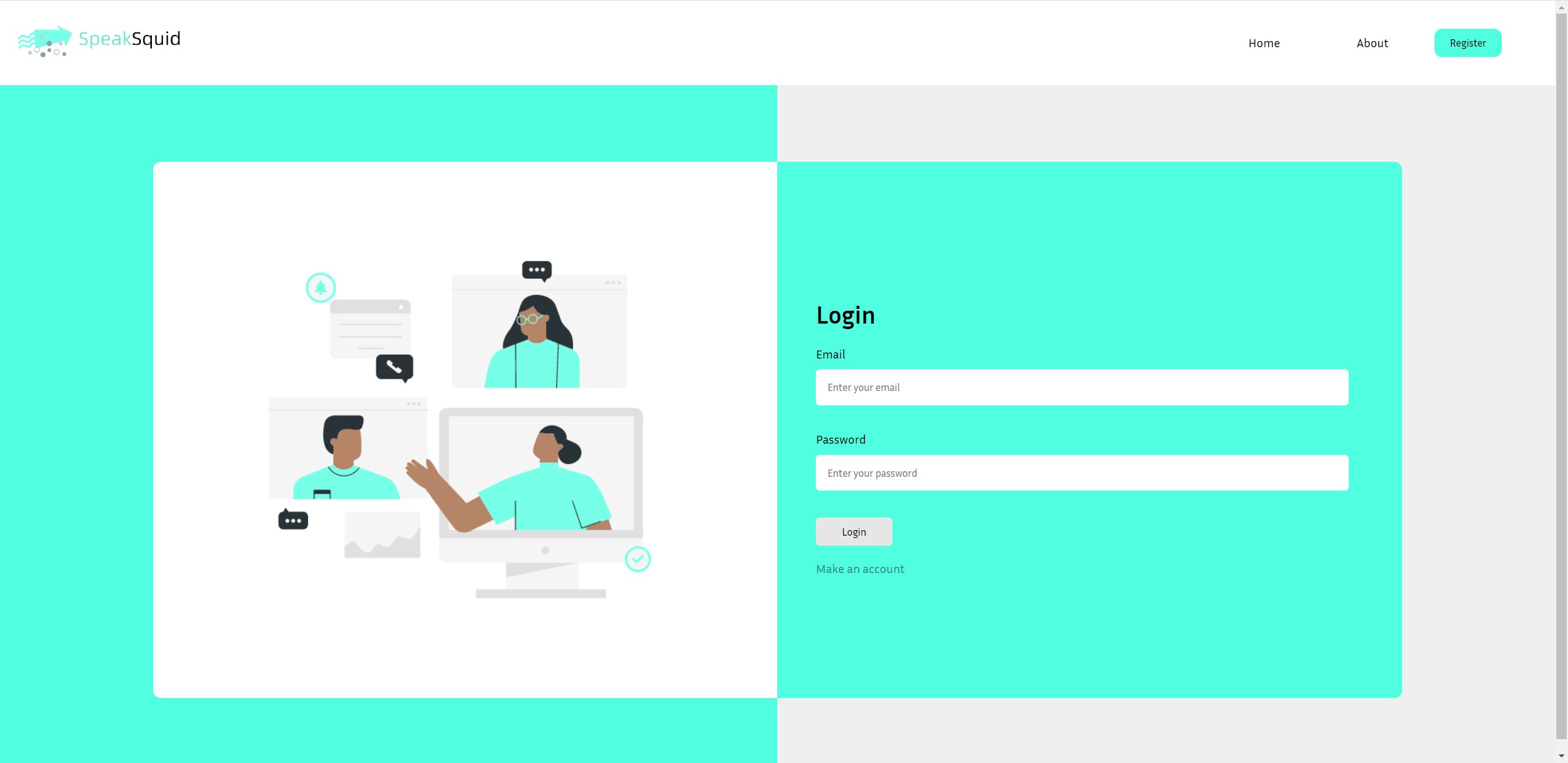
Before users can access Speak Squid, they need to first register for an account and log in. We used Node.js, Express, and Passport.js for the authentication. The frontend login and registration forms submit the user’s information to POST /login and POST /register routes, then in the backend Express handles the authentication endpoints while Passport verifies user credentials during login requests.
The main functionality of Speak Squid was a voice conversation pipeline that allowed users to get feedback while having live conversations with AI agents. I first needed to request access to the user’s microphone with the browser’s getUserMedia() function. Once we have permission, the browser would return a MediaStream which is the live audio data from the mic. I passed this stream into a MediaRecorder, which returned the recording in smaller chunks. While the user was speaking, I stored each chunk in an array. When the user stopped recording, I combined all the chunks into a Blob using the OGG audio format with the Opus codec. A Blob is basically like a file that is held only temporarily in the browser’s memory. I had to do it this way because the transcription endpoint couldn’t just take the browser’s live microphone stream as input, because it only accepted audio files. I put the Blob inside a FormData object (this format is often used for file upload requests that have multiple parts) and then attached this audio file along with the model name and language before sending the request with Axios. After that, Whisper returned the recorded speech as text.
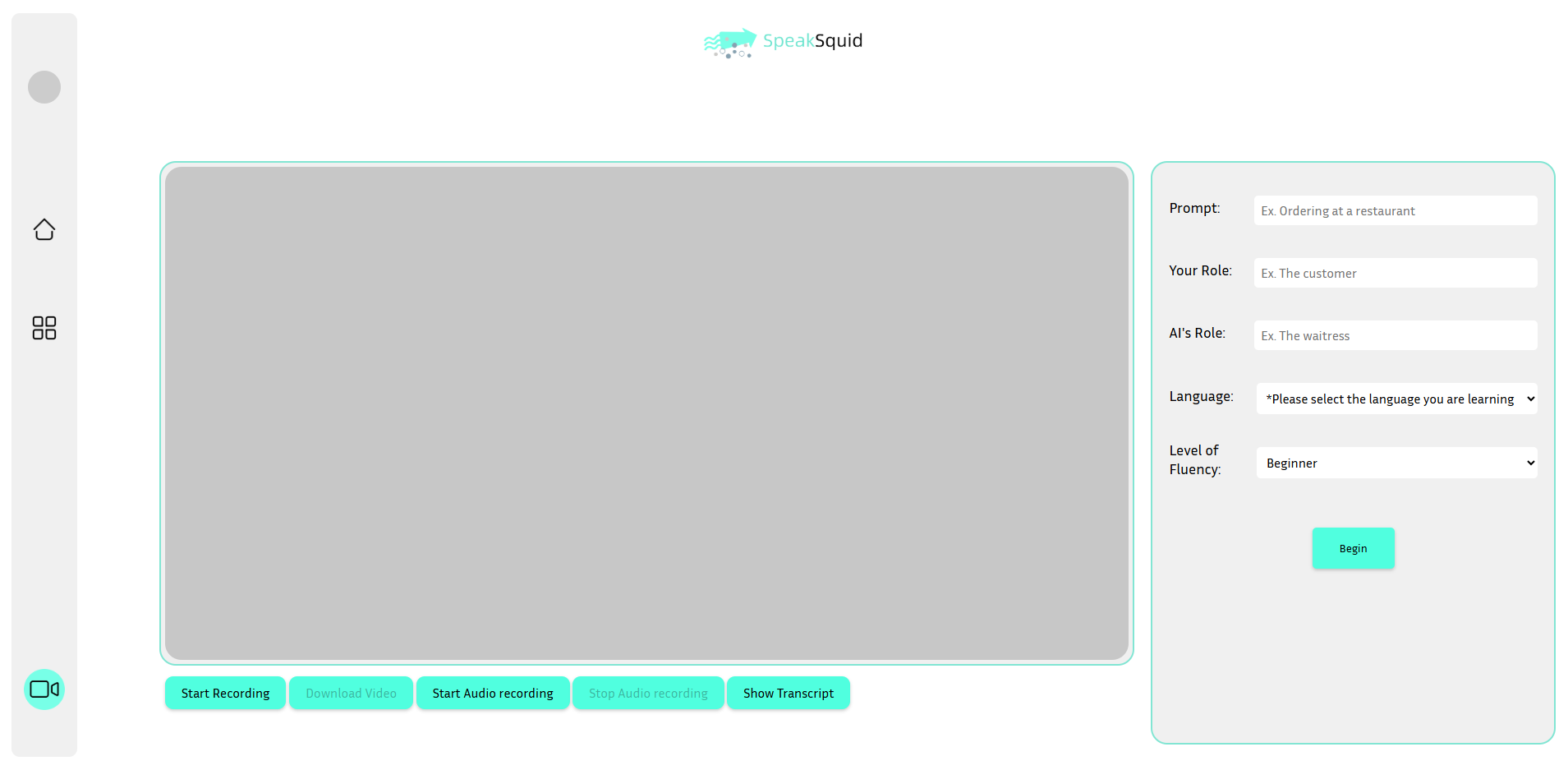
Once I converted the user’s speech to text, I combined it with information that was given by the user such as the conversation situation, the user’s role, the AI’s role, the language and the user’s fluency. This allowed the user to be able to practice in different scenarios. For example:
Situation: Ordering at a Restaurant
User Role: Customer
AI Role: Waiter
Language: French
Fluency: Beginner
My code put these selections into the model instructions so that the response was specific to the scenario for every conversation. I also changed the response length limit based on fluency. Beginner mode used a smaller token limit, while intermediate mode allowed a longer response. So while the prompt helped to control the expected language difficulty, adding this token restriction helped control the length of responses so beginners don’t get overwhelmed by too many words. Users also had the option of choosing from a variety of predetermined scenarios.
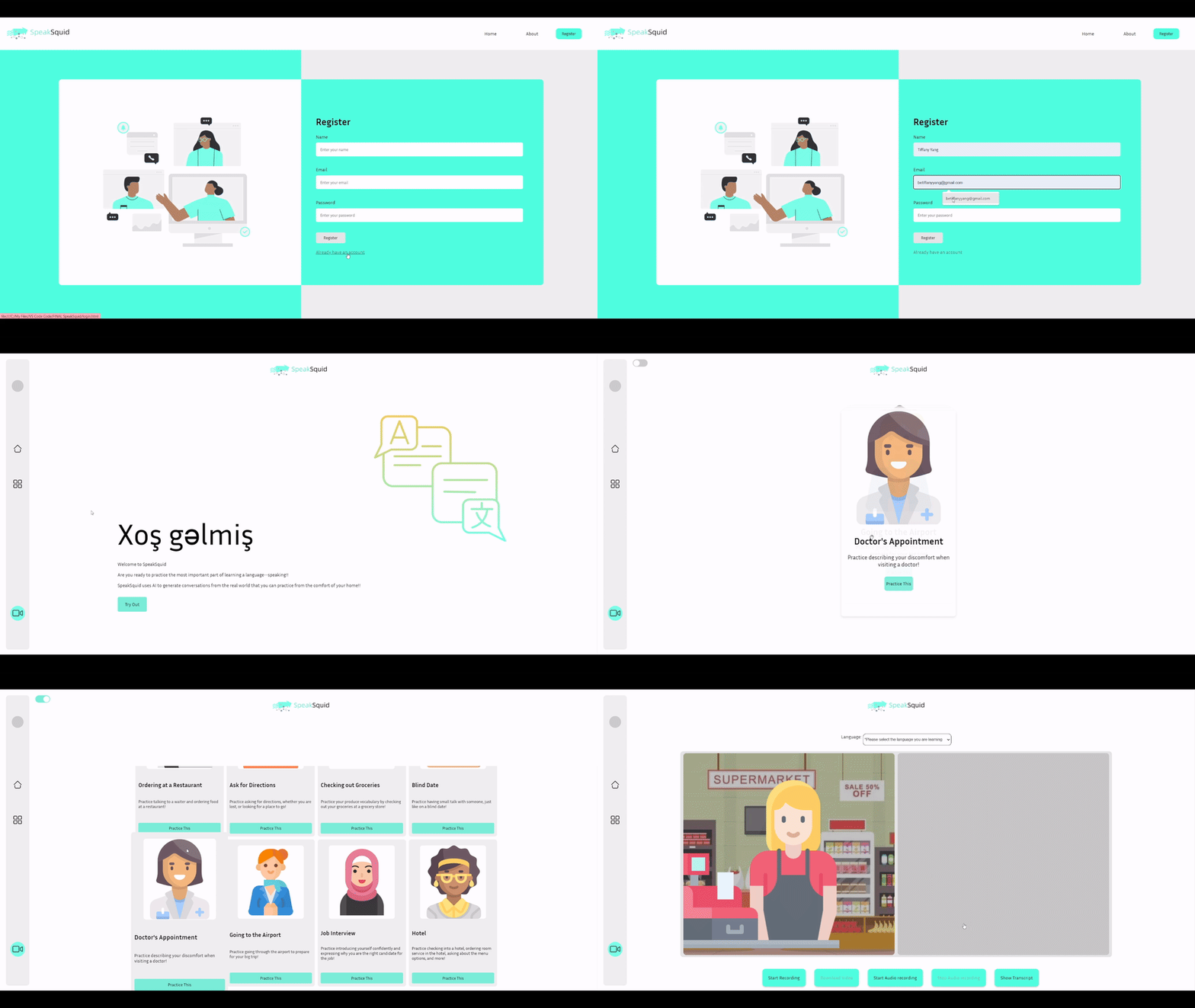
Another important feature I briefly mentioned before is that our application supports many languages (57 total). This wasn’t as simple as just adding languages to a dropdown menu, since we were using many different APIs which expected different language code formats. I had to develop language mapping logic that would translate the language the user selects into several different codes based on the requirements of the Whisper, OpenAI, LibreTranslate, and the browser’s Speech Synthesis API. It made it so that one single language choice would apply to all independent systems at once.
After GPT returned the response, I had to add it to the webpage dynamically without reloading the page each time. I did this using the Document Object Model (DOM), which is the browser’s live representation of the page. Basically JavaScript creates a new message <div>, assigns text and styles based on whether the user or AI is speaking, then inserts it into the conversation panel. It also stores a copy of this message into a separate transcript so the user can review the entire conversation later on. Finally, I passed the AI response into a SpeechSynthesisUtterance object in the browser that uses the Web Speech API to read the AI response out loud.



Video Recording and Session Playback
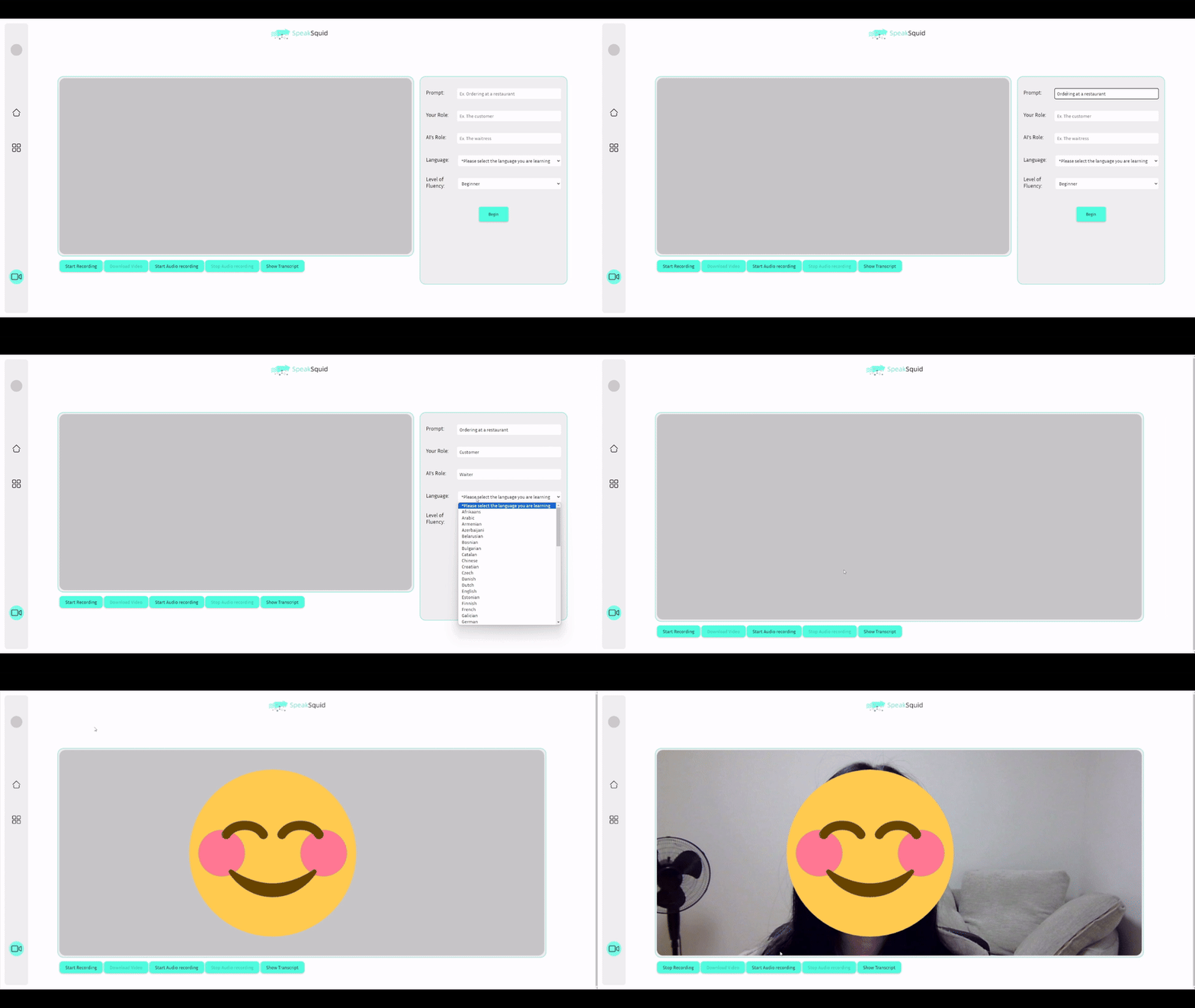
Before making Speak Squid, I spoke to a few people I knew who were learning a new language on their own. They consistently told me that they would record themselves speaking and play it back to see how it sounded, so I knew session playback would be a useful thing to include in my application. I implemented a separate media pipeline to record the user’s practice session. For the full recording, I again had to request the user’s camera and microphone and assign the MediaStream to a video element. Then I passed that stream into a MediaRecorder, where similar to the audio data, I stored it in chunks before combining it into a WebM Blob. I used URL.createObjectURL() to create a temporary browser address pointing to the Blob in memory so the recorded session can be played right away without uploading it to a server first. This Blob could also be downloaded by the user.
Translation and Grammar Feedback
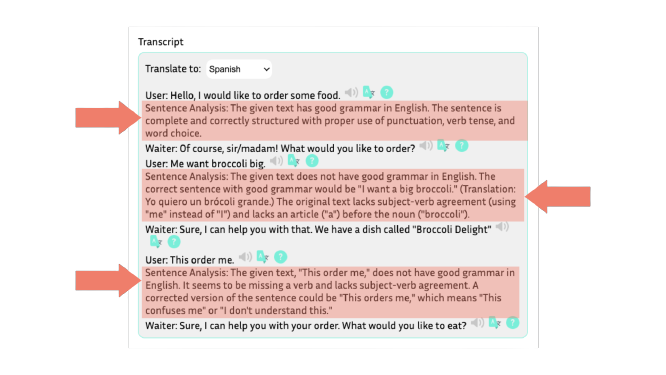
I wanted the conversation with the AI agent to feel normal, so I didn’t want the AI to interrupt the user when they made a mistake mid-conversation. Once the user ended the session, the transcript of their entire conversation would appear along with the ability to replay the correct pronunciation, translate the message and analyze its grammar. To replay pronunciation, I used the Web Speech API to have the browser read that selected sentence out loud. To translate, I used the LibreTranslate API and allowed the user to select the language they wanted the transcript to be translated to. Then my code would send a JSON request and create a new <div> below the original message with the translated text. For grammar analysis, I sent a separate GPT request with a prompt to determine whether the grammar was correct and to provide a corrected version if it is not.